

Setup Springbig as a SMS provider (generic)
in this section we will go through the steps to setup springbig as a generic SMS provider
Setting Up Springbig as an SMS Provider in CleverTap
Overview
This guide walks you through integrating Springbig as an SMS provider in CleverTap, enabling you to send personalized SMS campaigns using CleverTap’s robust customer data platform and Springbig’s SMS marketing capabilities—all from within your CleverTap dashboard.
What You'll Learn
- Configure Springbig as a generic SMS provider in CleverTap
Why Use This Integration?
This integration combines CleverTap’s behavioral analytics and segmentation with Springbig’s SMS marketing to drive engagement. Benefits include:
- Sending targeted SMS based on user behavior
- Automating campaigns for VIP's, LTV segments, winbacks, or dormant players
- Streamlining your MarTech stack with a single setup
🛠 Setup Instructions
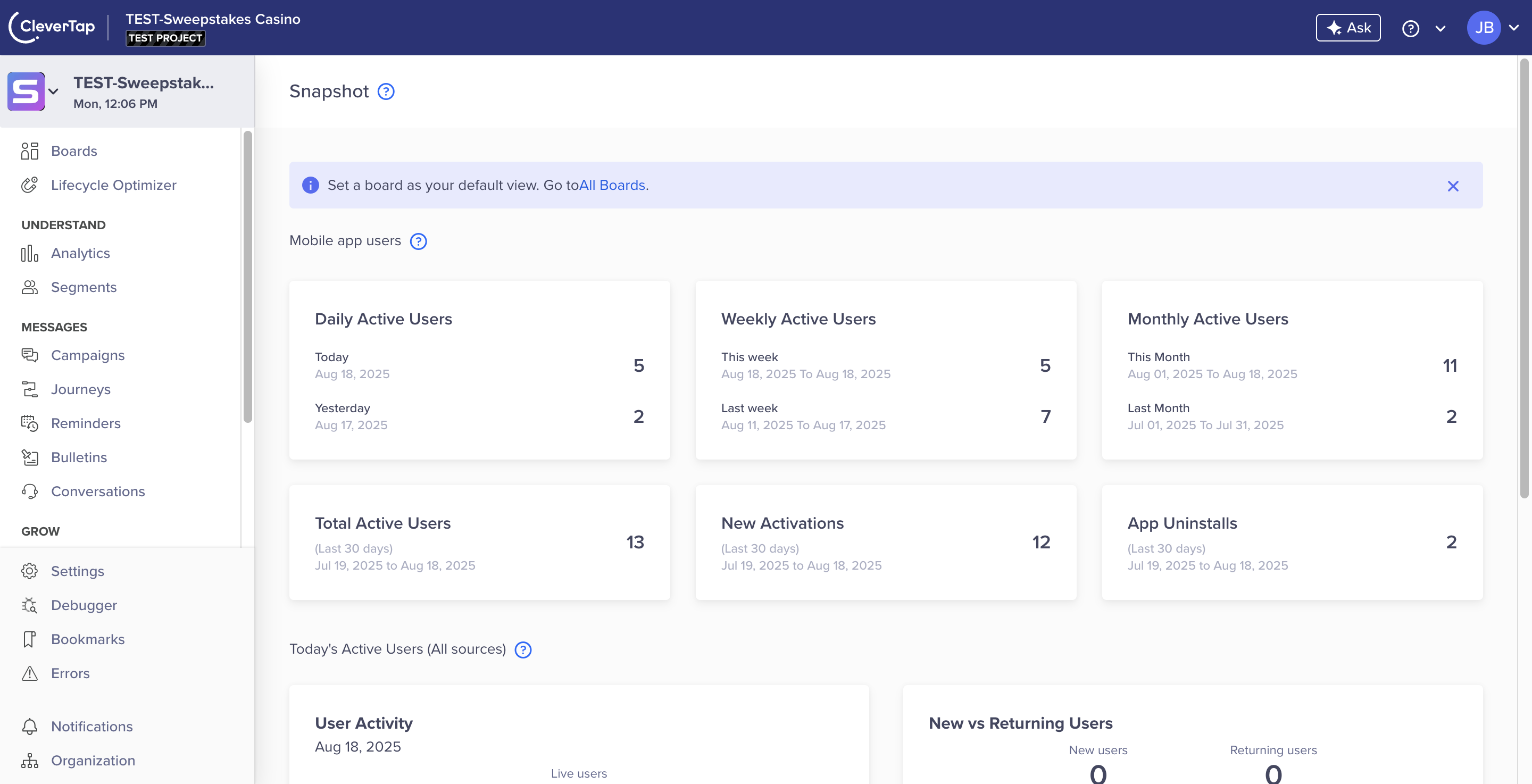
Step 1: Access Settings
- In your CleverTap dashboard, locate the menu bar.
- Click Settings.

Step 2: Go to SMS Channels
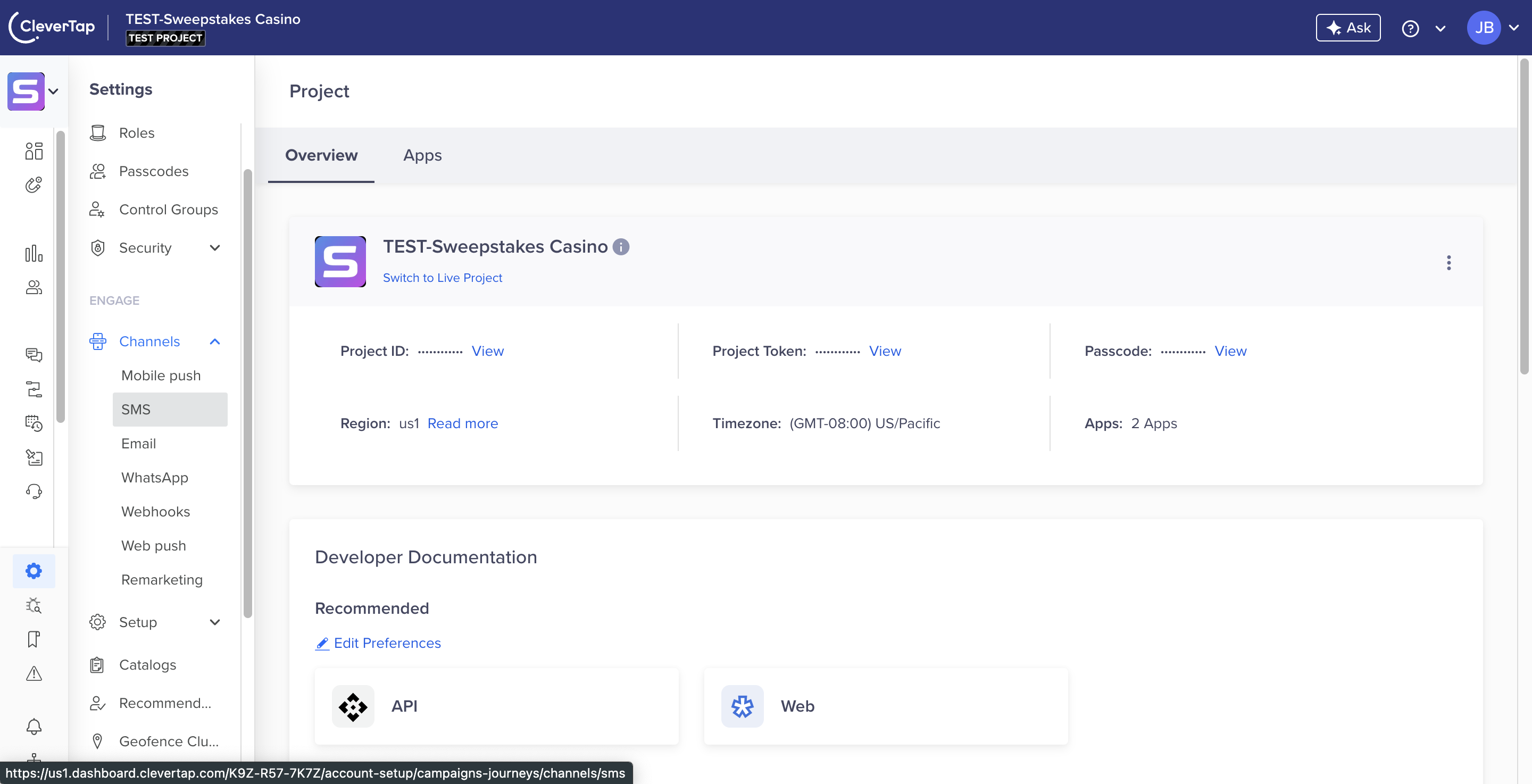
- In the Settings menu, select Channels.
- Click SMS.

Step 3: Add a New Provider
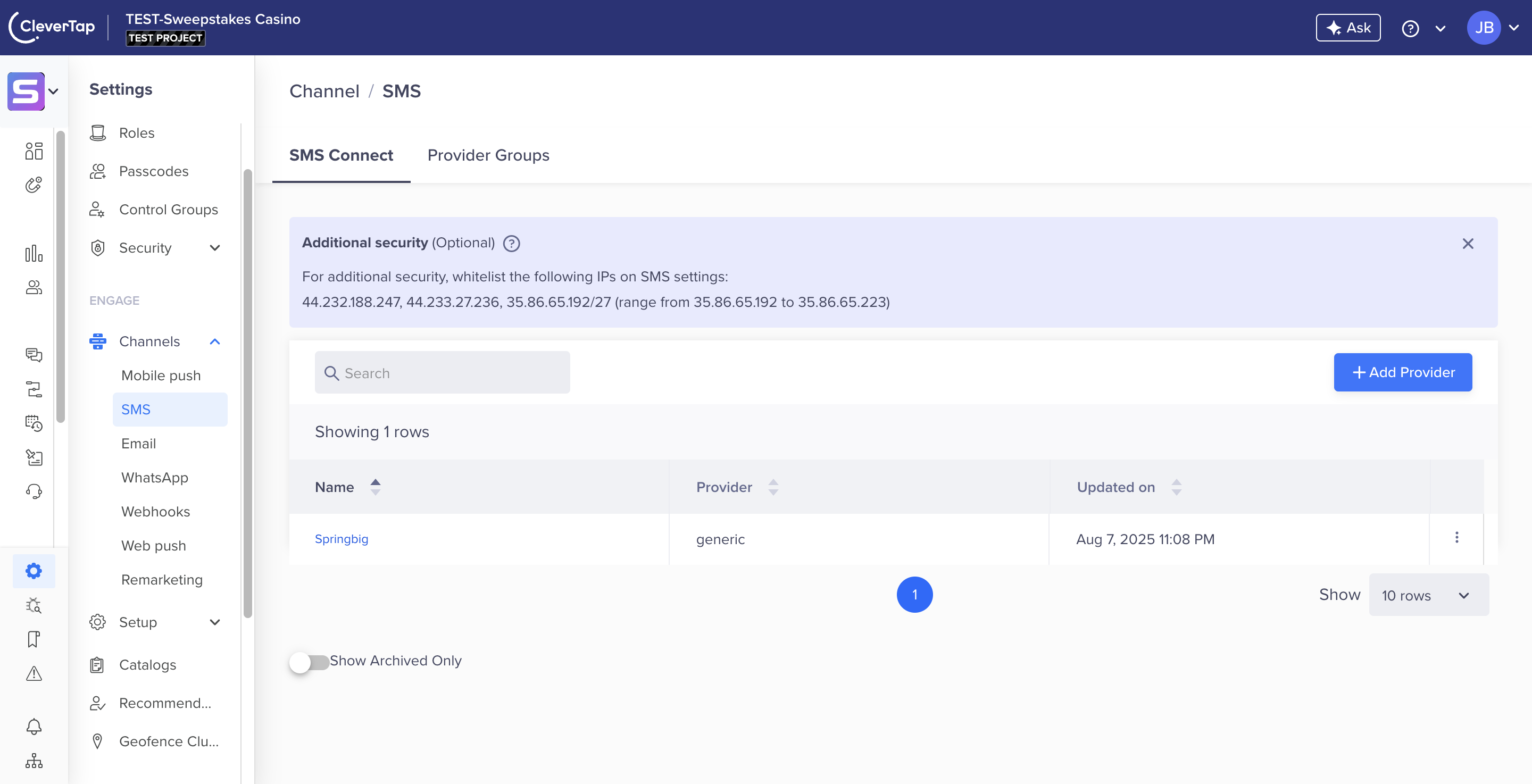
- Click Add Provider to configure a new SMS service.

Step 4: Choose Provider Type
- Select Other (Generic) as the provider type to enable custom configuration.
- Set the nickname as Springbig
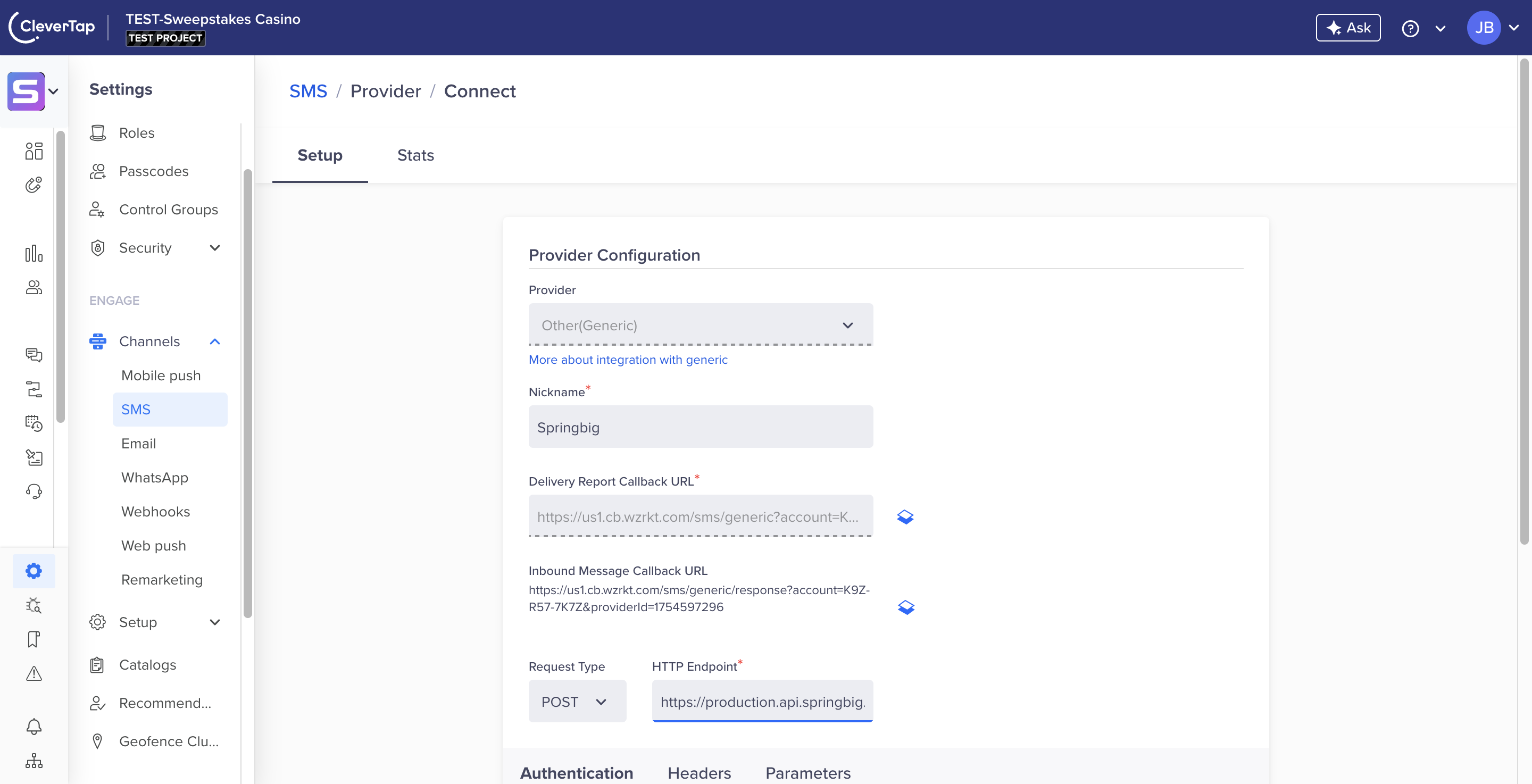
Choosing "Other (Generic)" lets you define custom API settings for Springbig.

Step 5: Configure Provider Details
- Fill in the fields with the following details:
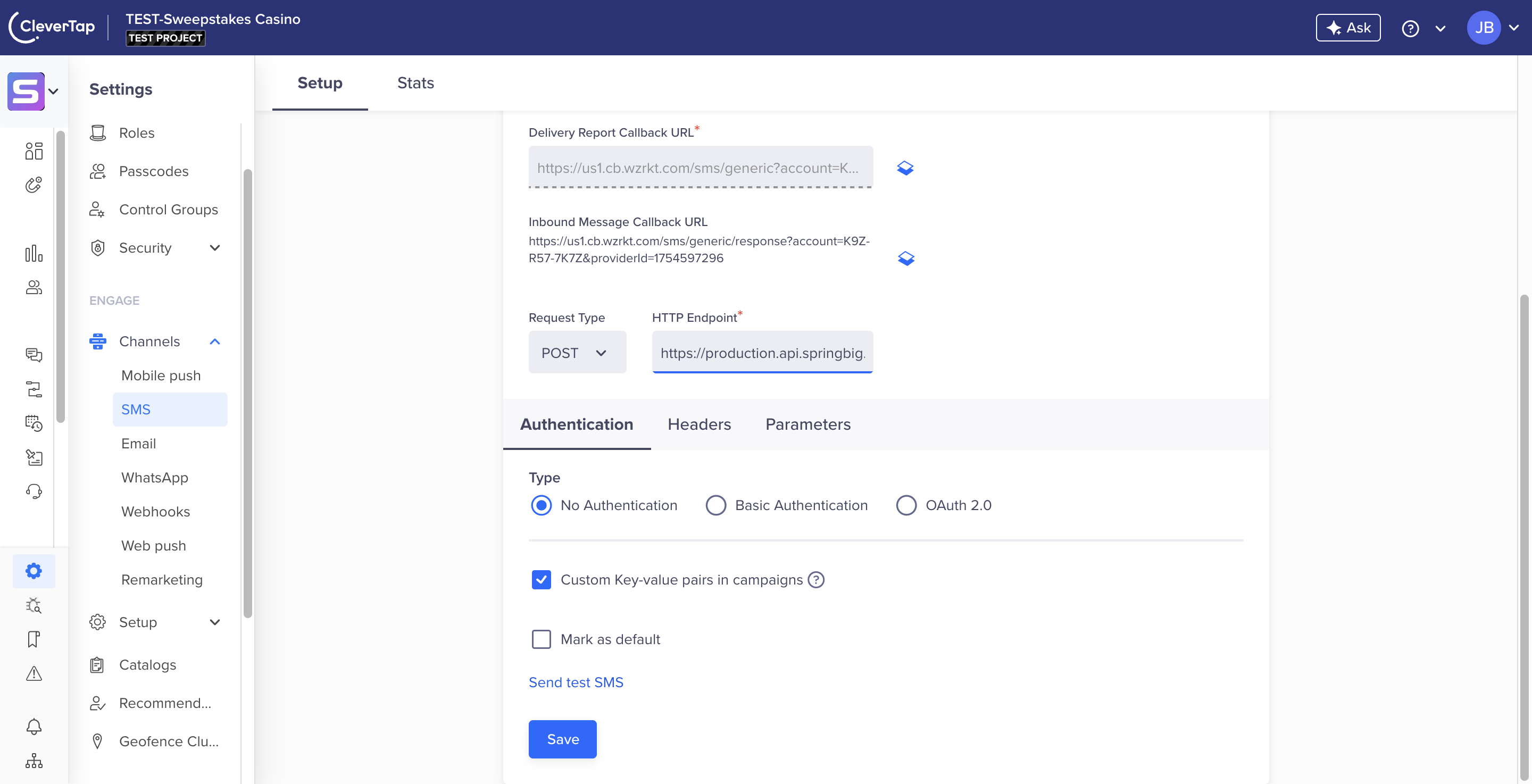
- Request Type:
POST - HTTP Endpoint:
https://production.api.springbig.technology/general/v1/message_template_logs - Authentication: No authentication
-
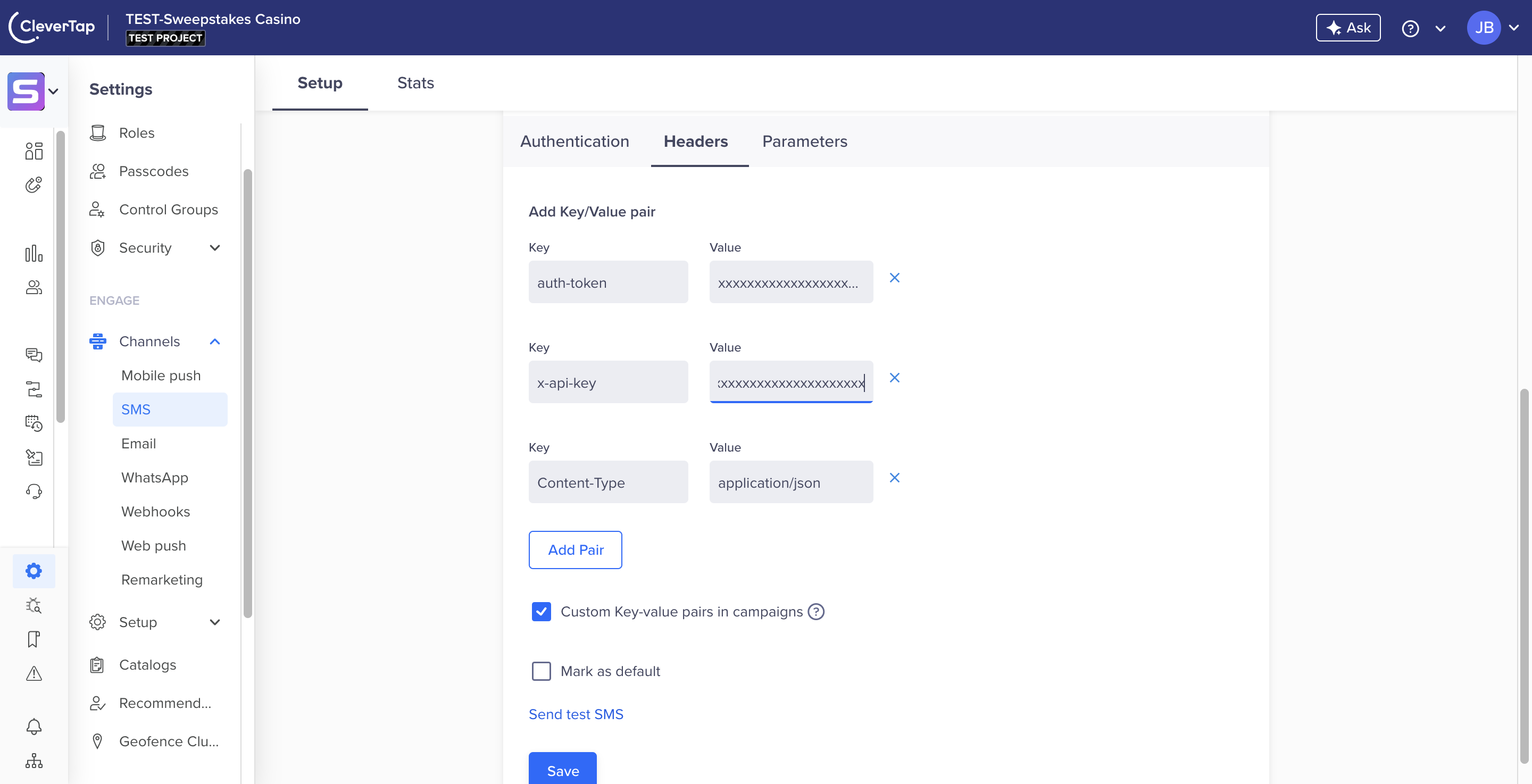
- Headers:
auth-token: Contact your Springbig Account Manager (AM) for this value.x-api-key: Contact your Springbig Account Manager (AM) for this value.Content-Type:application/json
-
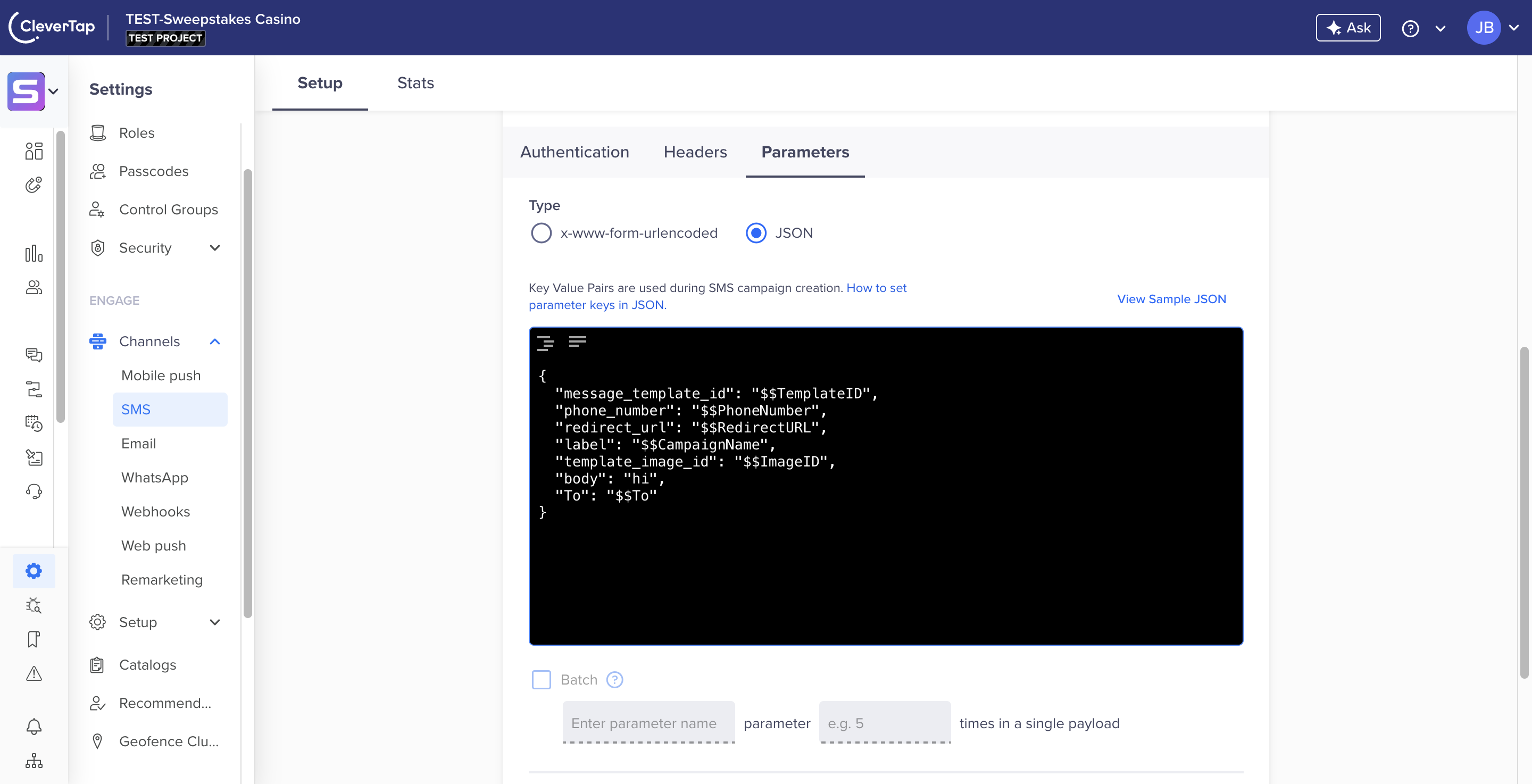
- Parameters: Use the following JSON payload:
{ "message_template_id": "$$TemplateID", "phone_number": "$$PhoneNumber", "redirect_url": "$$RedirectURL", "label": "$$CampaignName", "template_image_id": "$$ImageID", "body": "irrelevant", "To": "$$To" } -
- Request Type:
Ensure you obtain the
auth-tokenandx-api-keyfrom your Springbig Account Manager to avoid setup issues.

Step 6: Save Configuration
- Review all entries for accuracy.
- Click Save to finalize the setup.
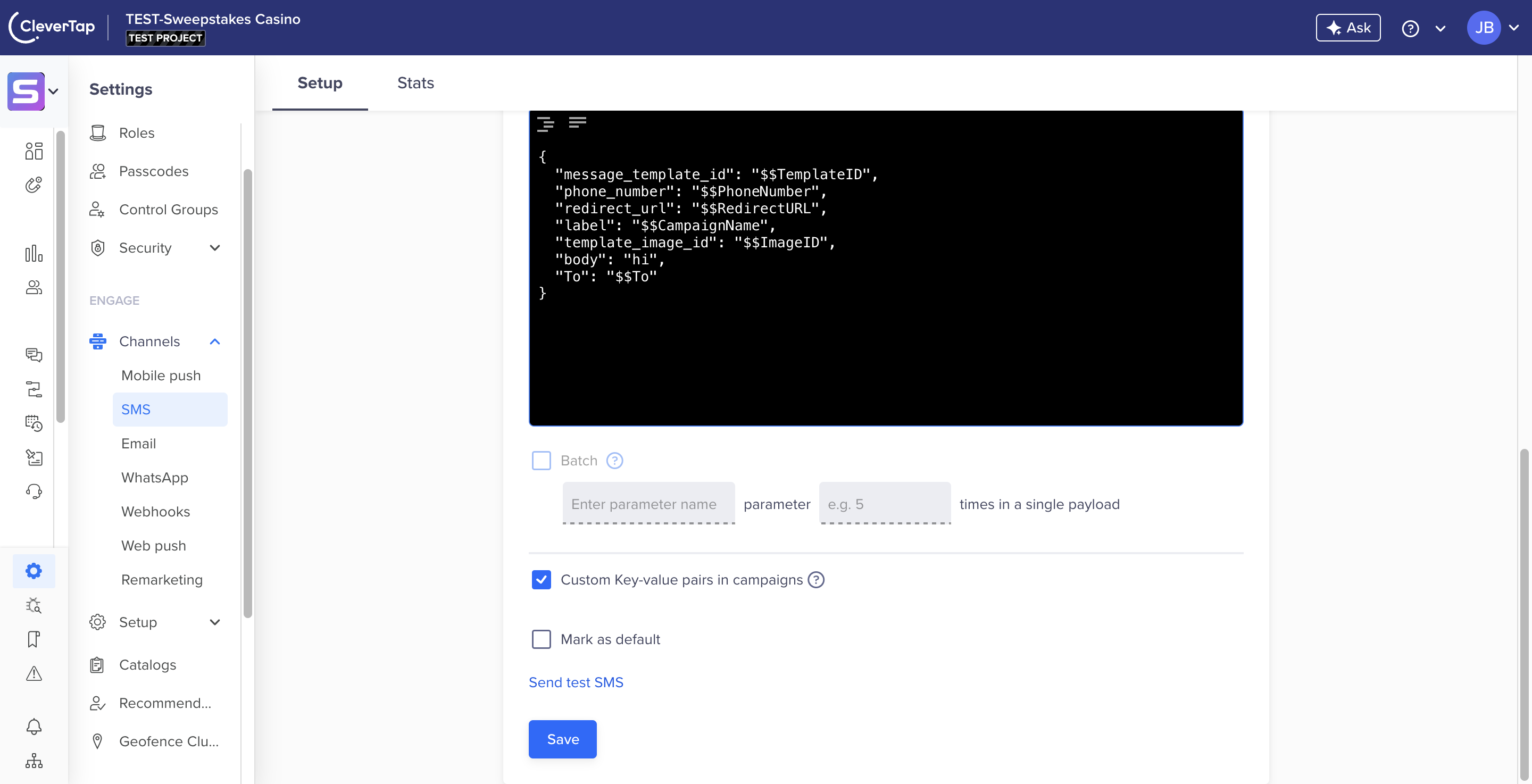
Once saved, your Springbig integration is ready! You can now send SMS campaigns through CleverTap using Springbig.
Updated 11 months ago