

User Signups to Springbig
What You'll Learn
- Configure a webhook in OneSignal to sync user signups with Springbig
- Create a journey in OneSignal to automate SMS enrollment for segmented users
- Use dynamic user data for personalized SMS campaigns
- Ensure secure API key management for Springbig integration
Why is this required
- Members need to be enrolled in Springbig before proceeding to creating campaigns in the following parts of this guide. If the member was not signed up in springbig we will not be able to send the message to them.
🛠 Setup Webhook for User Signups
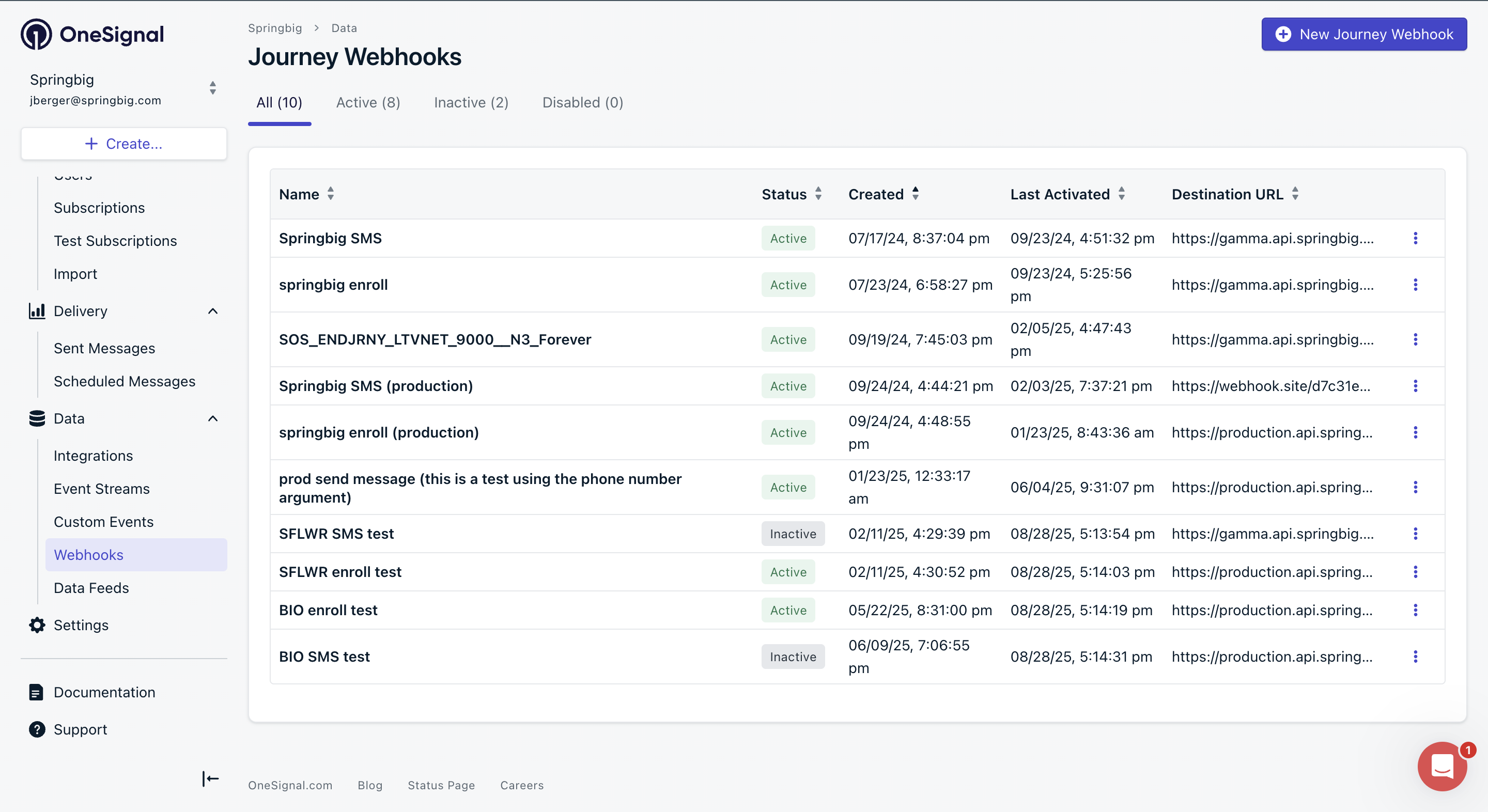
Step 1: Access Webhooks Settings
- In your OneSignal dashboard, locate the menu on the left-hand side.
- Click Data > Webhooks.
- Click New Journey Webhook in the top-right corner.

Step 2: Name the Webhook
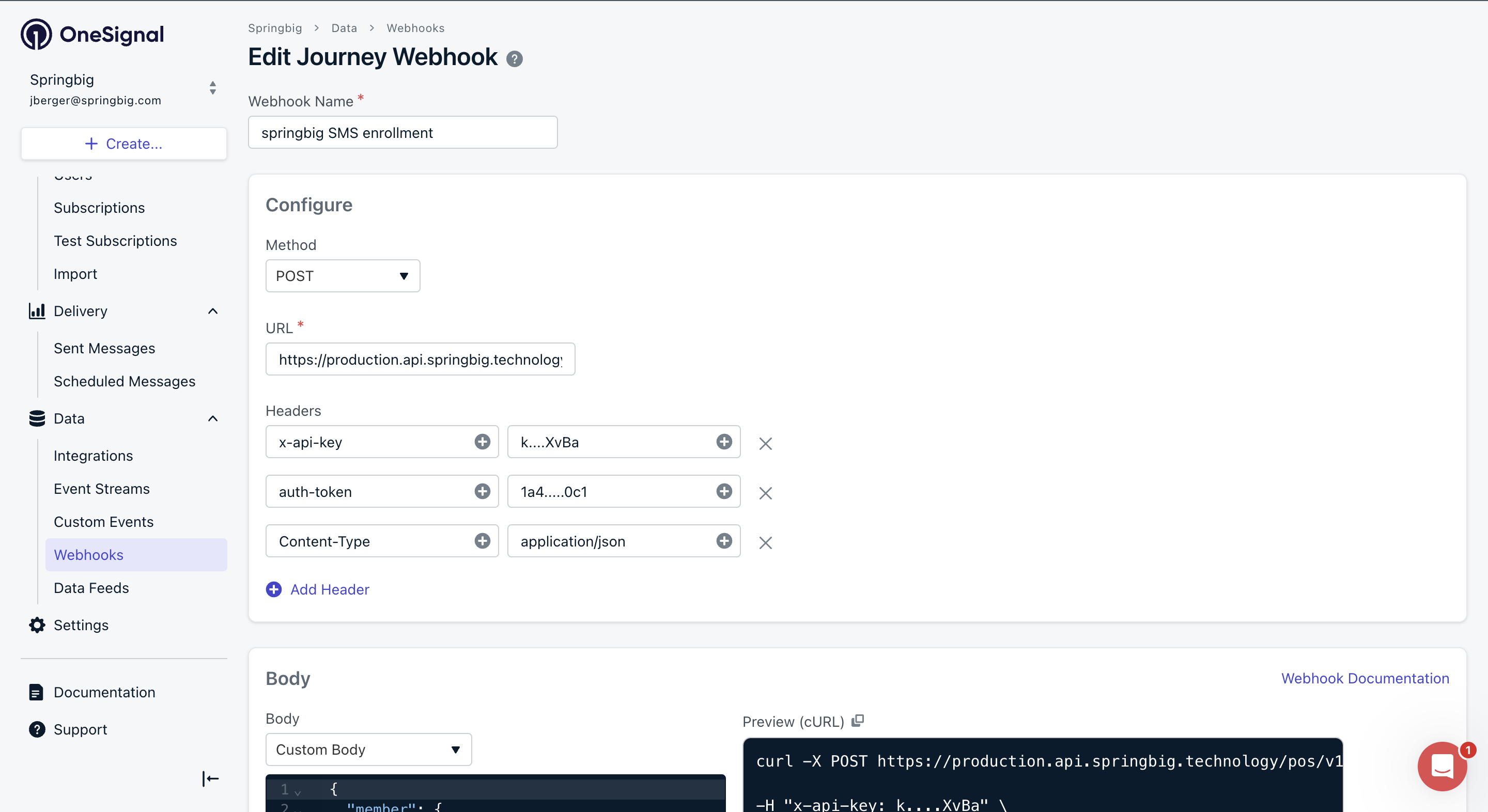
- Enter a descriptive webhook name, such as
SMS subscriptions springbigorSMS enrollments springbig.
Choose a name that reflects the purpose, like syncing new user signups to Springbig, for easy reference.
Step 3: Configure Webhook Details
- Fill in the fields with the following details:
- Method:
POST - URL:
https://production.api.springbig.technology/pos/v1/members - Headers:
x-api-key: Contact your Springbig Account Manager for this value.auth-token: Contact your Springbig Account Manager for this value.Content-Type:application/json
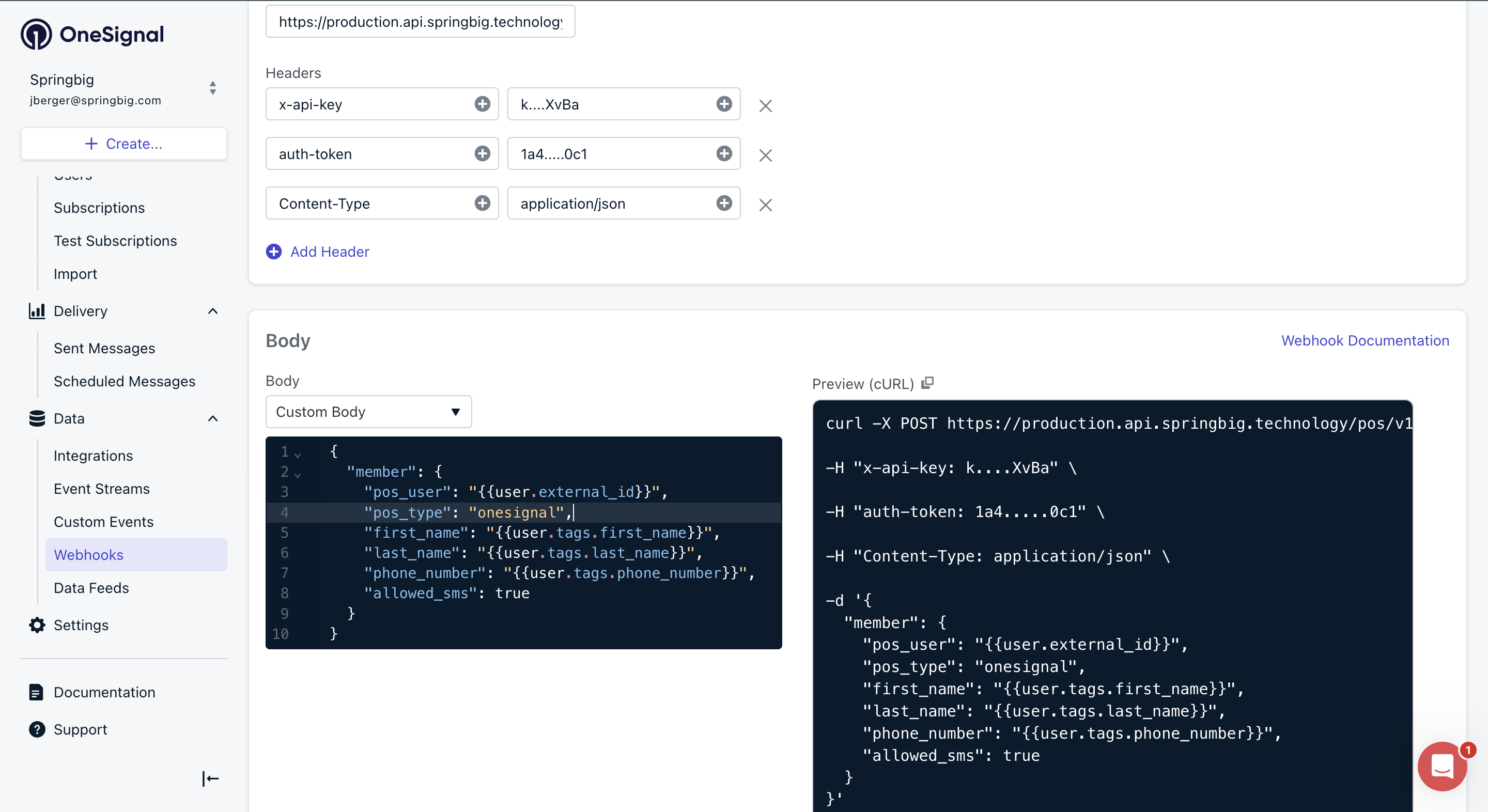
- Body: Select Custom Body and enter the following JSON:
{
  "member": {
    "pos_user": "{USER.EXTERNAL_ID}",
    "pos_type": "onesignal",
    "first_name": "{{user.tags.first_name}}",
    "last_name": "{{user.tags.last_name}}",
    "phone_number": "{{user.tags.phone_number}}",
    "allowed_sms": true
  }
}
- Method:
Ensure the dynamic tags like
{{user.tags.phone_number}}are consistent with your tagging in onesignal. This is custom based on your platforms configuration
Step 5: Save Webhook
- Click Save to store the webhook configuration.
- Click Activate in order to use the webhook
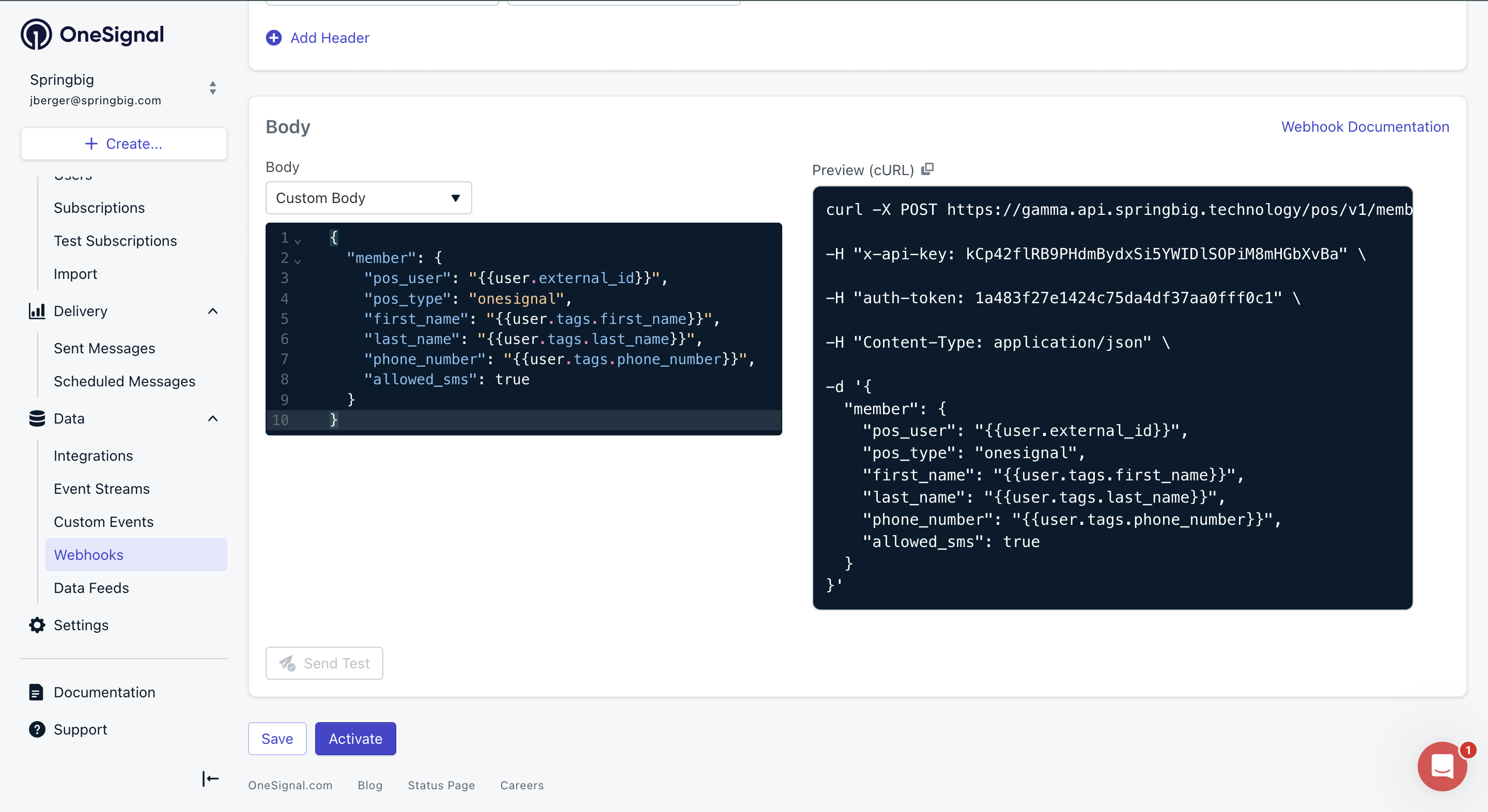
Your webhook is now set up to sync new user signups to Springbig for SMS enrollment!
🛠 Setup SMS Enrollment Journey
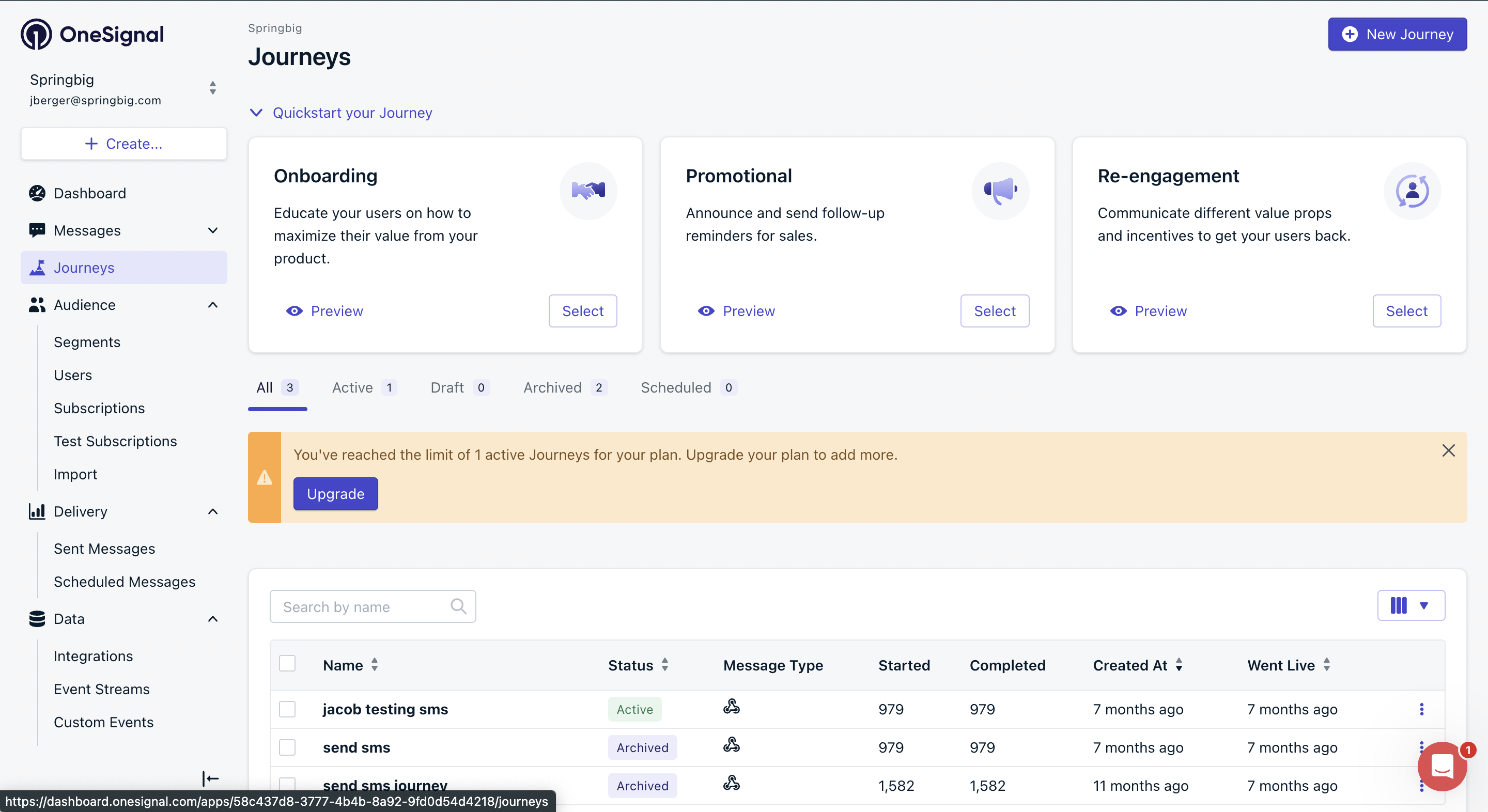
Step 1: Access Journeys
- In the OneSignal dashboard, locate the left-hand menu.
- Click Journeys.
- Click New Journey in the top-right corner.
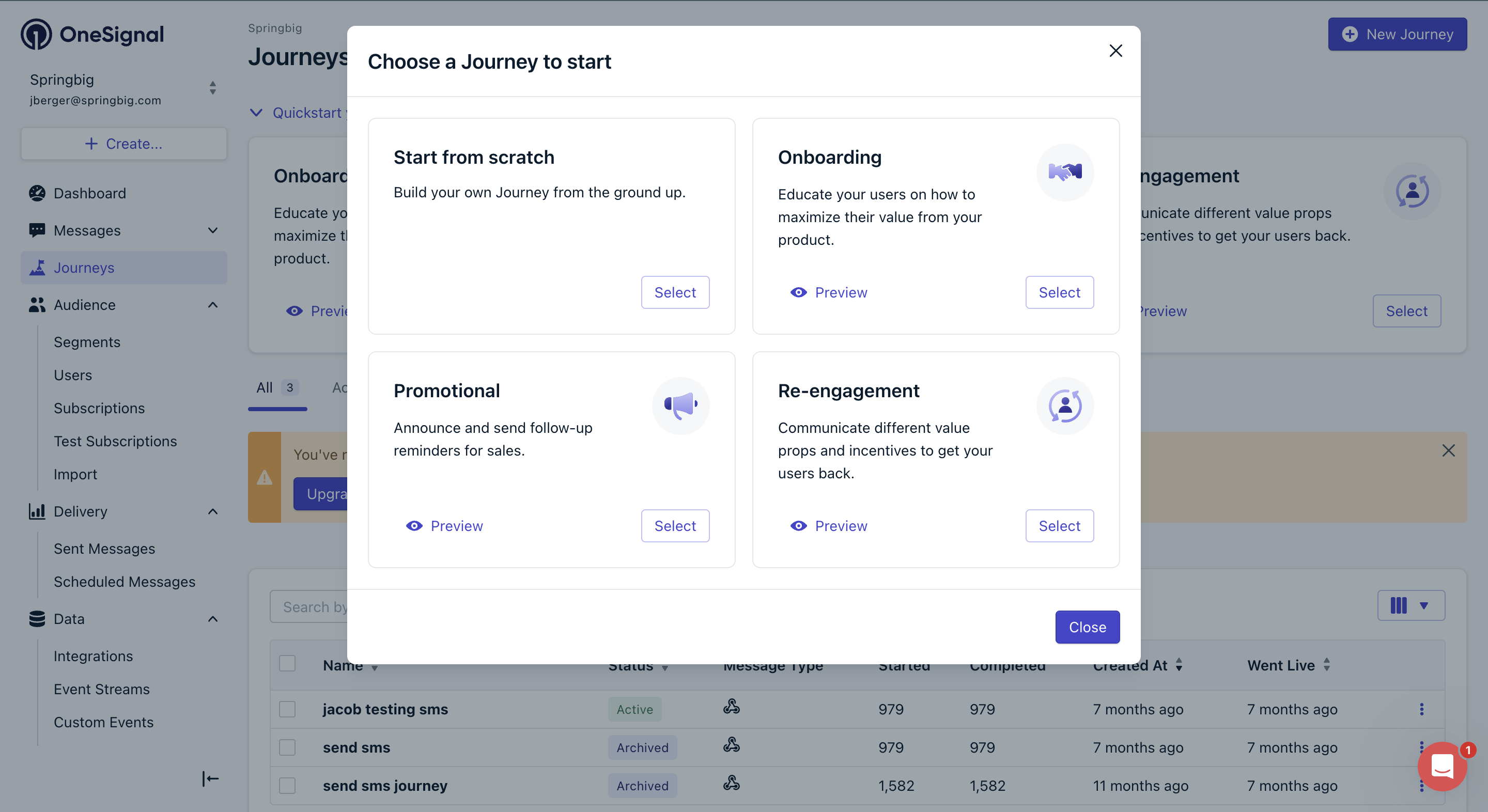
Step 2: Start from scratcg
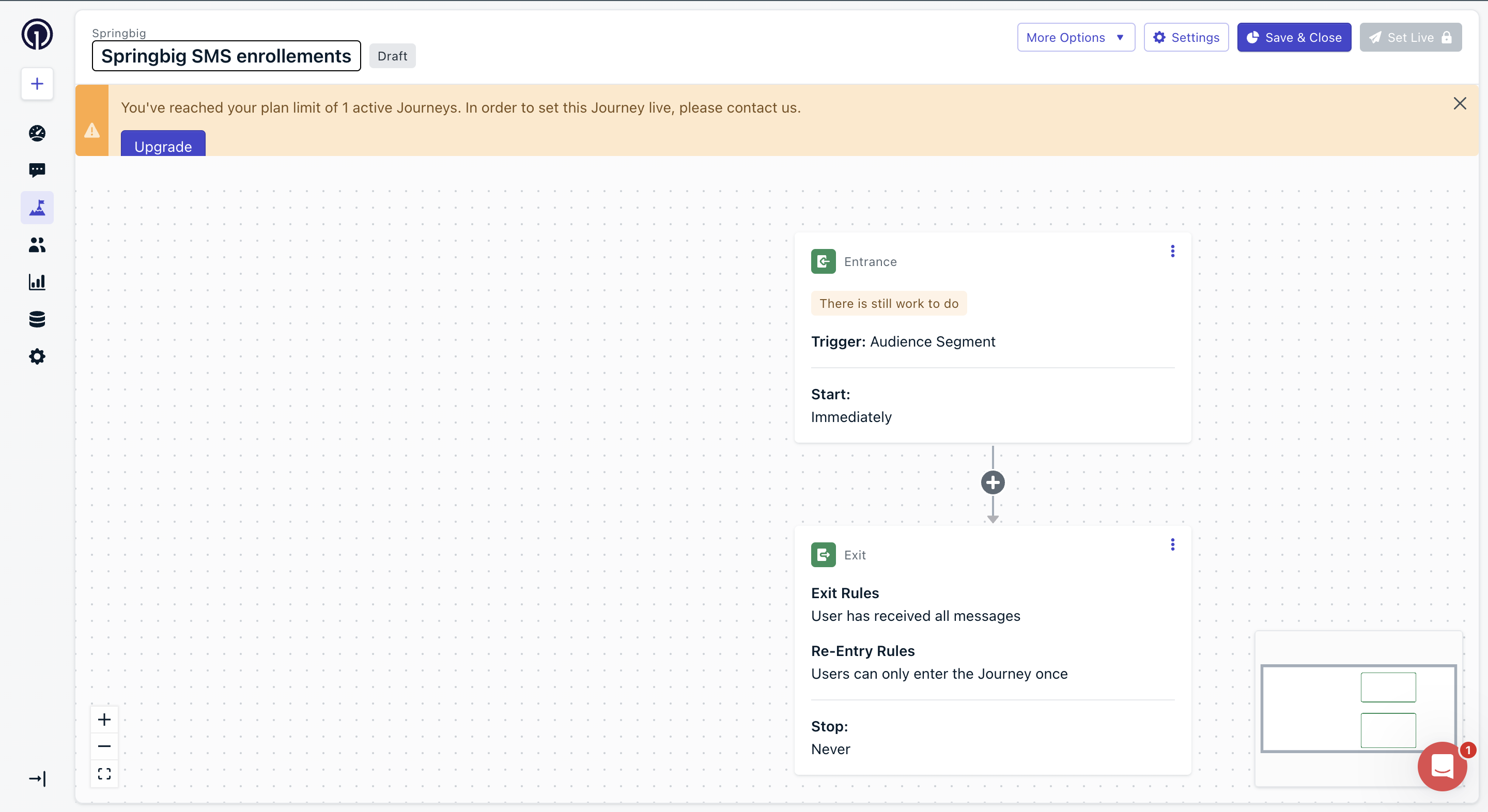
- Select start from scratch and then name the journey
- Enter a journey name, such as
SMS enrollments. Use a clear name to reflect the journey’s purpose, like automating SMS enrollment for new users
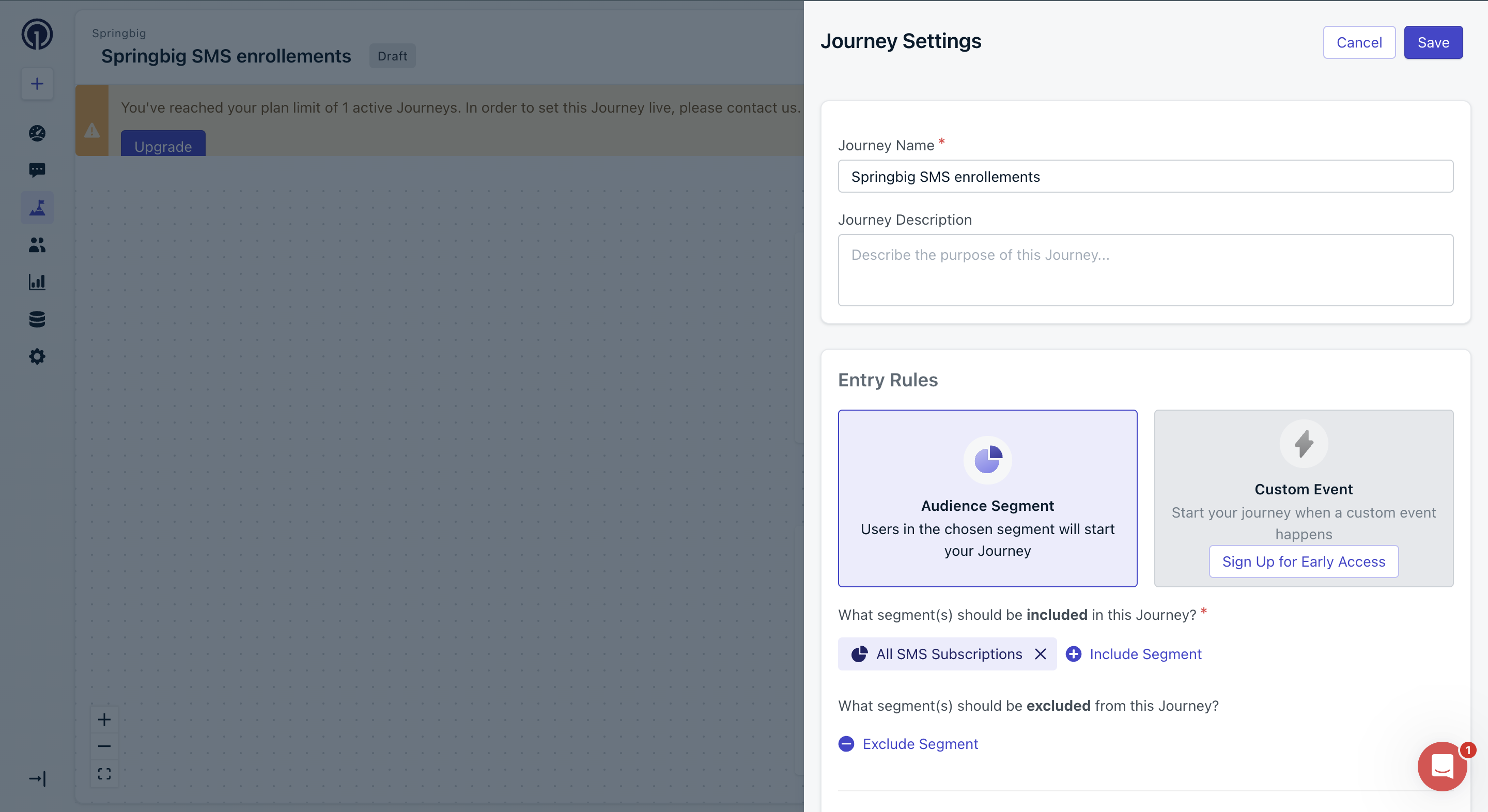
Step 3: Define Segment(s)
- Select the segment(s) of users who meet the desired conditions for SMS enrollment (e.g., new signups, completed SMS form, phone number existing, etc).
The segment should be users who have enrolled and expect to receive SMS campaigns.
Step 4: Add Webhook Action
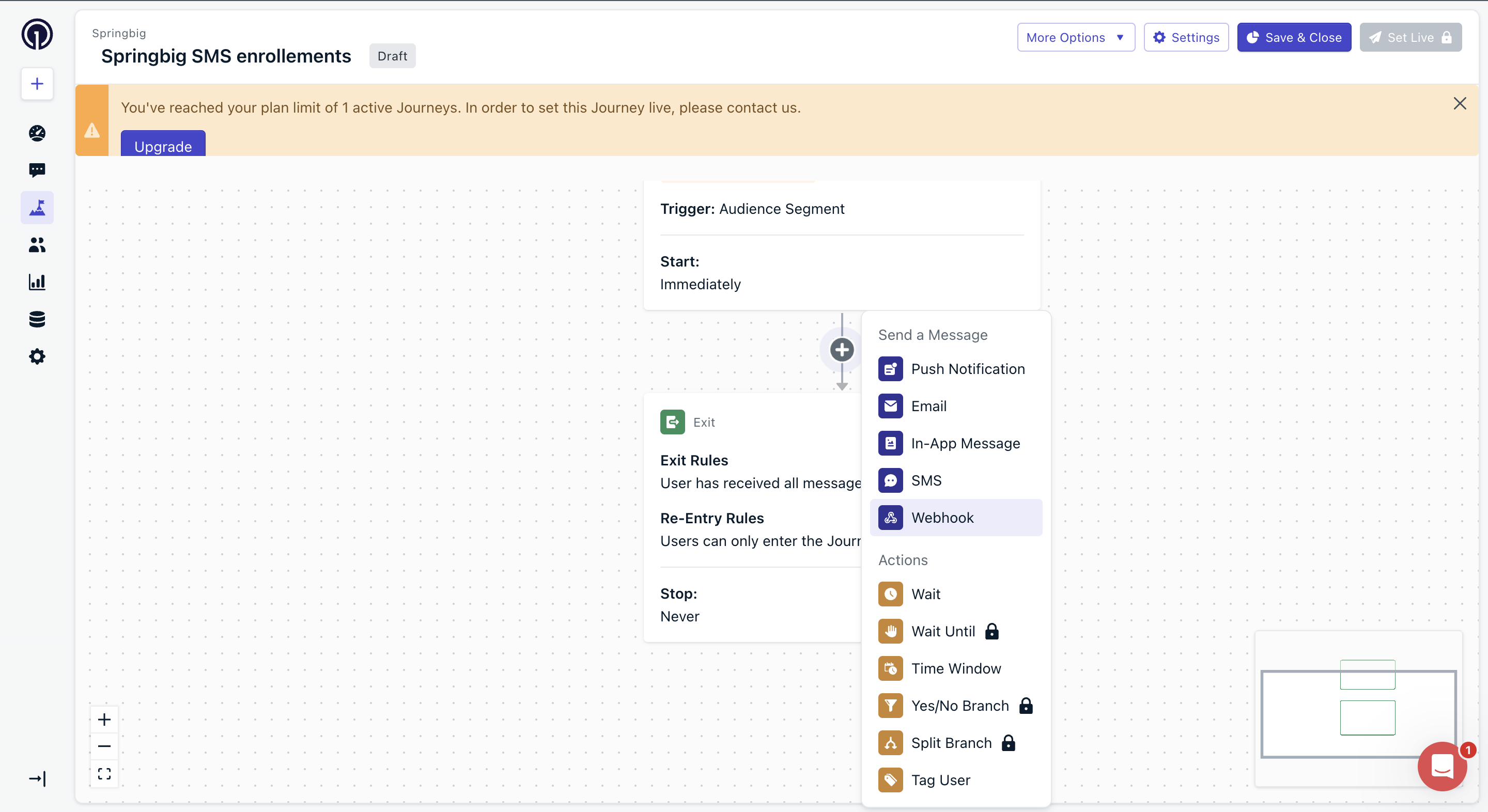
- Click the plus sign in the journey editor.
- Select Webhook to add a webhook action.

Step 5: Select the User Signup Webhook
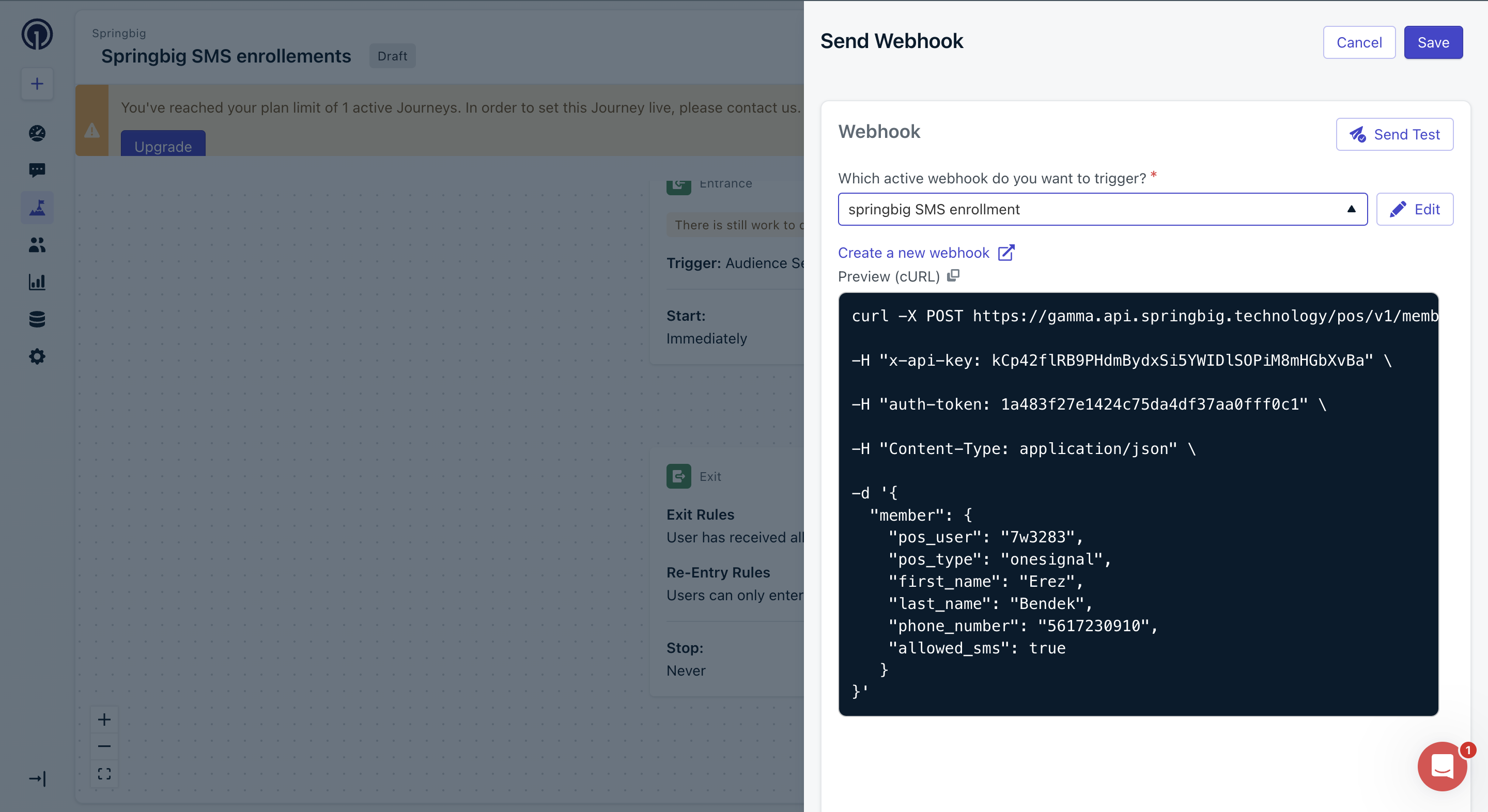
- Choose the webhook created earlier (e.g.,
SMS subscriptions springbig).
Ensure the selected webhook matches the one configured for user signups to Springbig.
Step 7: Save and Close
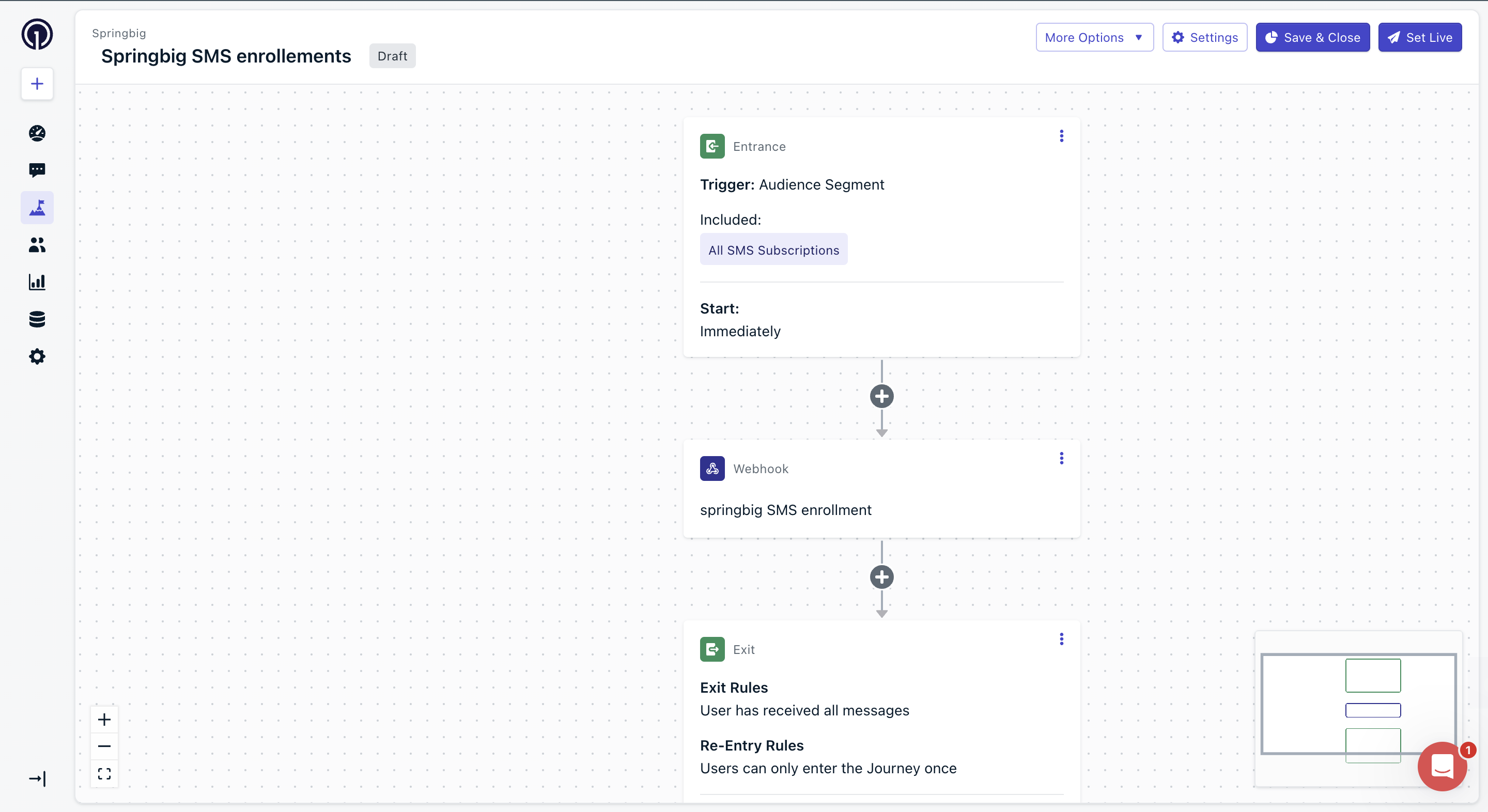
- Click Set Live to finalize the journey setup.
Your SMS enrollment journey is now live, automatically syncing segmented users to Springbig for SMS campaigns!
Updated 11 months ago
Did this page help you?