

SMS Configuration
Before Getting Started
Important: Make sure you are collecting SMS consent from your end users before sending any messages.
If your Klaviyo account does not allow you to collect SMS consent through Klaviyo forms, please use a Springbig form instead.
Collecting proper consent from your customers is required to ensure compliance before sending SMS communications.
What You'll Learn
- Trigger SMS messages directly from Klaviyo Flows
- Incorporate pre-approved images and message templates
- Add clickable links with tracking and optional follow-up webhooks
- Securely configure API credentials with Springbig
Why is this required
- This setup allows you to send personalized, compliant SMS messages through Klaviyo using your approved Springbig assets.
🛠 Setup SMS Message Flow in Klaviyo
Step 1: Access Flows
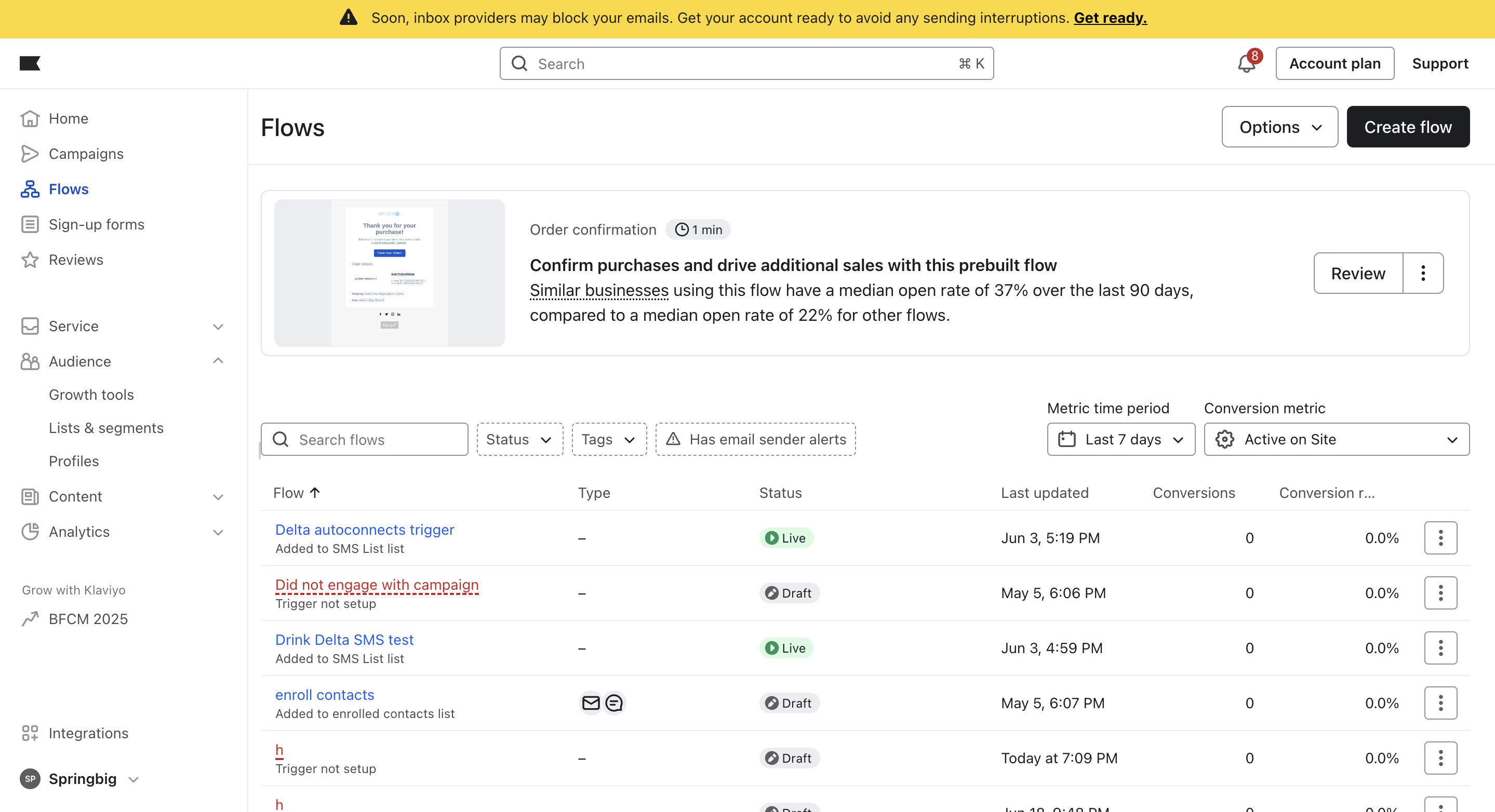
- From your Klaviyo dashboard, click Flows in the left-hand menu.
- Click Create Flow in the top-right corner.
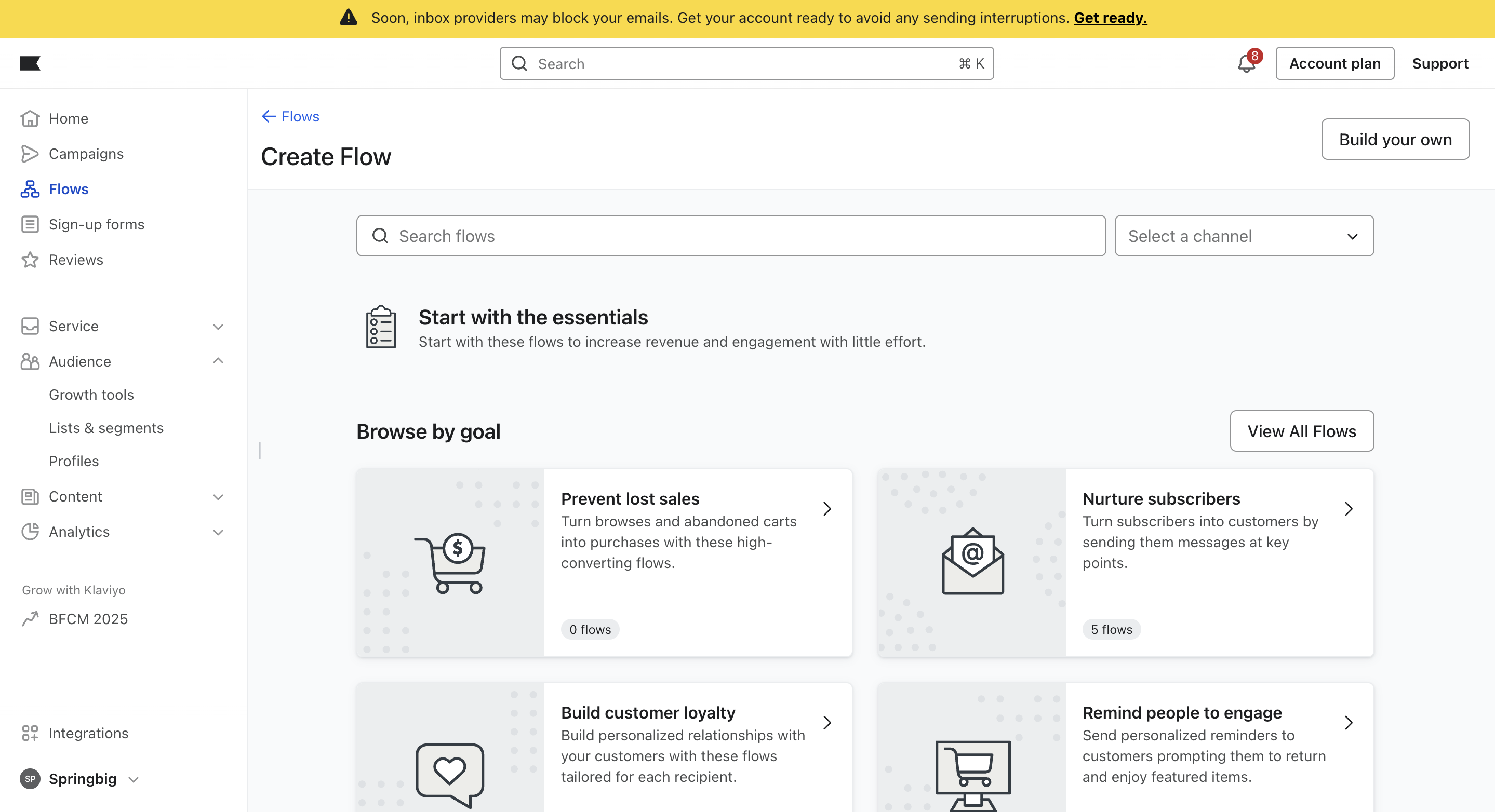
- Click Build your own
Step 2: Name your Flow
-
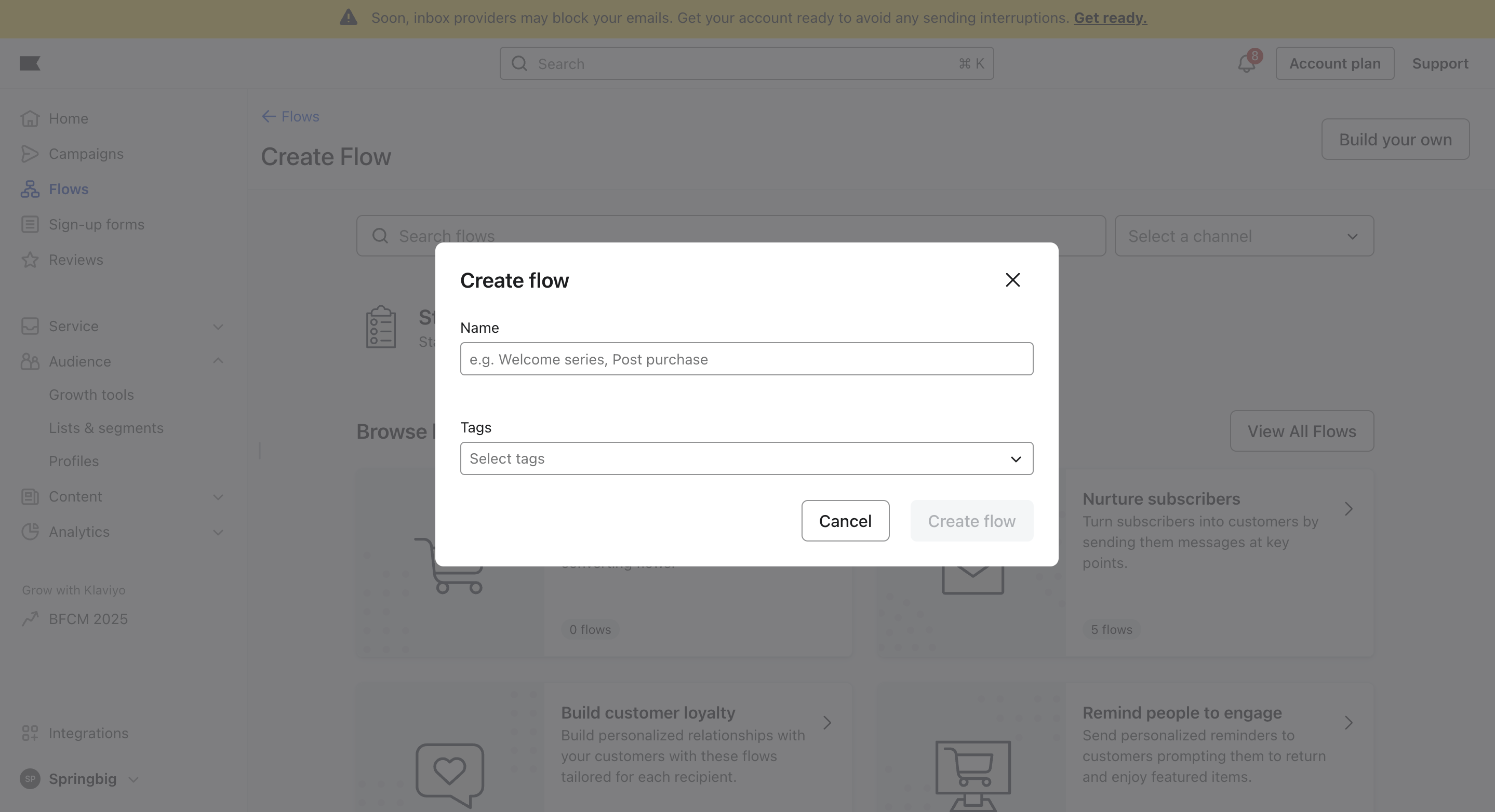
Enter a descriptive flow name, for example:
{{Your List Name}} + Springbig Webhook
Use a name that reflects the specific Klaviyo list and purpose, so it’s clear this flow syncs that list to Springbig.
Step 3: Add a Trigger
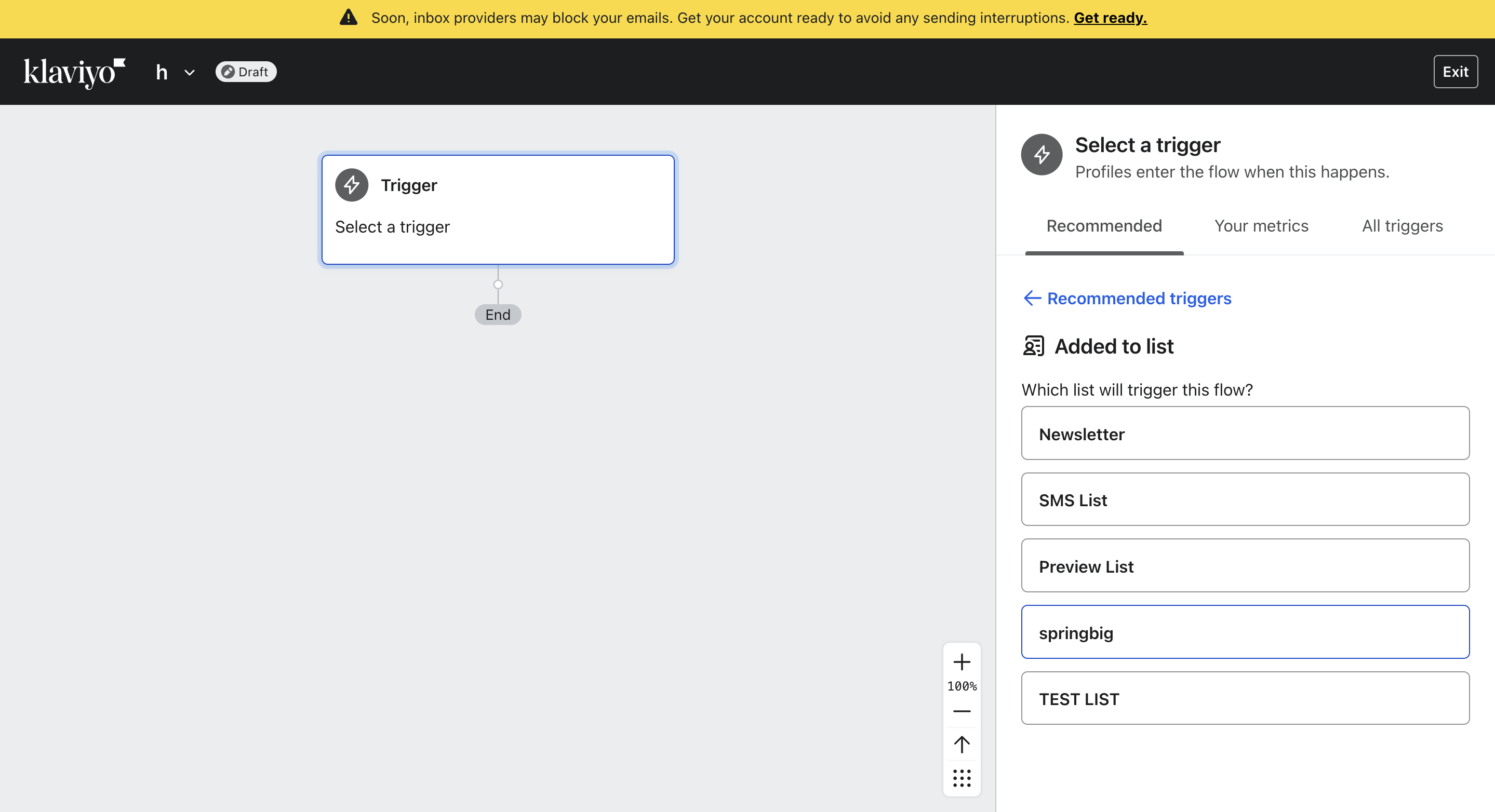
- Choose from the list of triggers or design your own
- For this guide we will be using the example of 'Customer added to list'.
Step 4: Add a Webhook Action
-
In the flow builder, drag and drop a Webhook under the trigger.
-
Give the webhook a descriptive name, such as:
Springbig SMS Trigger
Use a name that makes it easy to identify this webhook as your SMS message trigger.
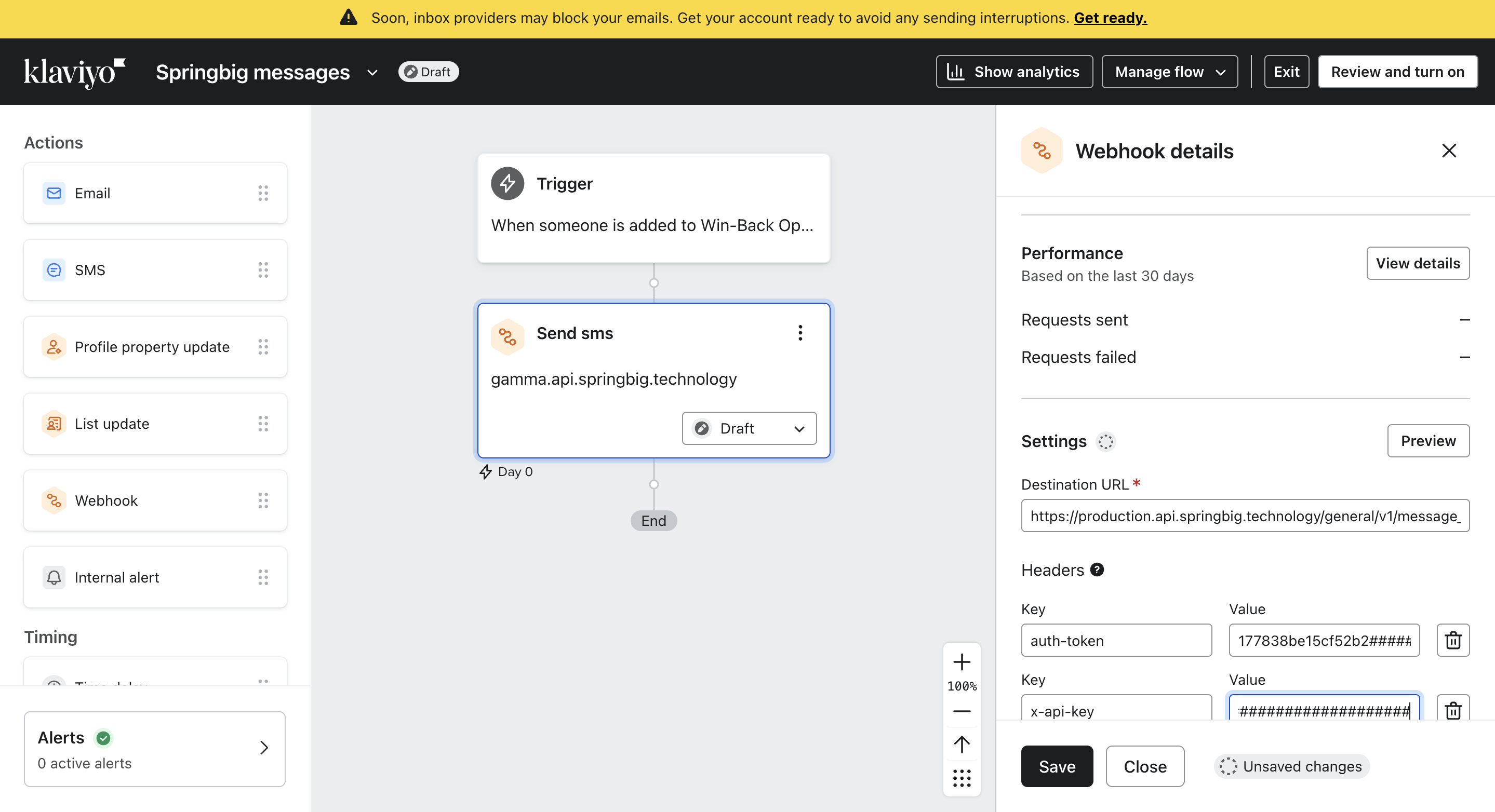
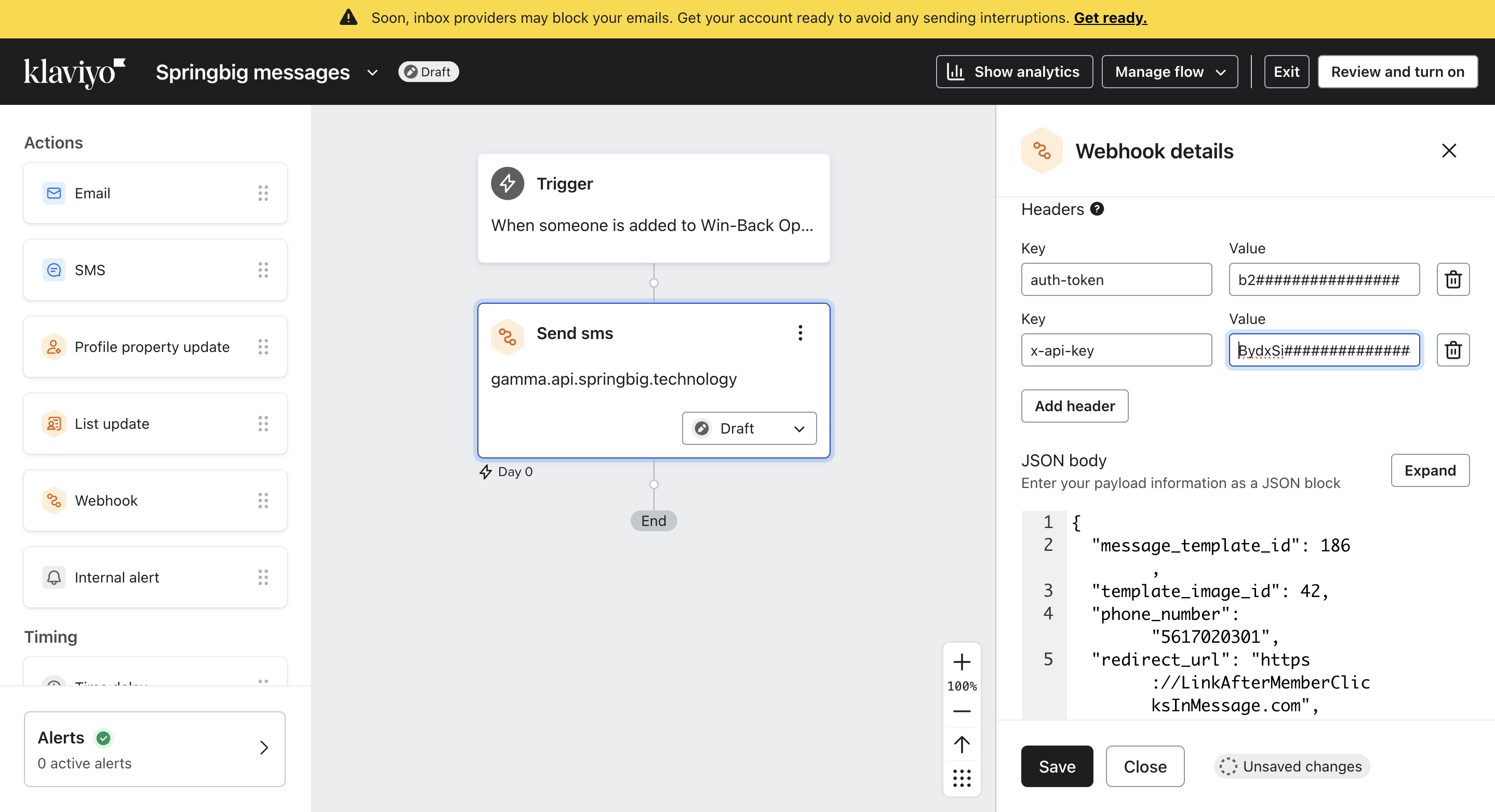
Step 3: Configure Webhook Details
-
Destination URL:
https://production.api.springbig.technology/general/v1/message_template_logs -
Headers:
auth-token: Provided by your Springbig Account Managerx-api-key: Provided by your Springbig Account ManagerContent-Type:application/json
-
JSON Body: Paste the following payload and adjust values as required:
{
  "message_template_id": 123,
  "phone_number": "{{ person.phone_number | default:'' }}",
  "redirect_url": "https://website.com",
  "webhook_url": "https://webhook.com",
  "label": "campaign name",
  "merchant_location_id": 1234,
  "template_image_id": 456
}Required fields: message_template_id, phone_number, and template_image_id (if including an image).
Your Account Manager will provide the correct IDs.

Step 4: Save & Activate
- Click Update Action Statuses (top-right).
- Set Action Status to Live.
- Click Save (bottom-left).
Your SMS Flow is now live! When a customer enters this Klaviyo Flow, a personalized SMS will be triggered via Springbig.
📘 Parameters Reference
| Field | Type | Required | Description |
|---|---|---|---|
message_template_id | integer | ✅ Yes | ID of the approved SMS template (provided by your Account Manager) |
phone_number | string | ✅ Yes | Customer’s phone number from Klaviyo ({{ person.phone_number }}) |
template_image_id | integer | Recommended | Required if including an approved image (provided by your Account Manager) |
label | string | Recommended | Name of the campaign. This will be used to group messages into one campaign for analytics and reporting |
redirect_url | string | Recommended | Optional clickable link included in the SMS |
webhook_url | string | No | Optional URL to capture link click events |
merchant_location_id | integer | No | Merchant location ID if relevant |
Updated 11 months ago